Understand better and learn faster by watching with dual subtitles.
Easily choose and switch the subtitle languages that work best for you — and get instant translations right from the video.
✅ Why it’s helpful:
- 🌐 Watch with two subtitles at once — one native, one learning language
- 🖱️ Hover on words in the upper subtitle to see translations instantly
- 🔄 Switch subtitle languages anytime, based on your learning needs
- 👁️ Turn each subtitle on or off anytime for full control
- ⭐ Some subtitle language options are premium, for deeper learning
👣 How to use Dual Subtitles:
1.Go to the subtitle tab in the sidebar
2.Use the language selectors at the bottom to quickly choose your two subtitle languages
-
- This is the easiest and fastest way to switch languages anytime
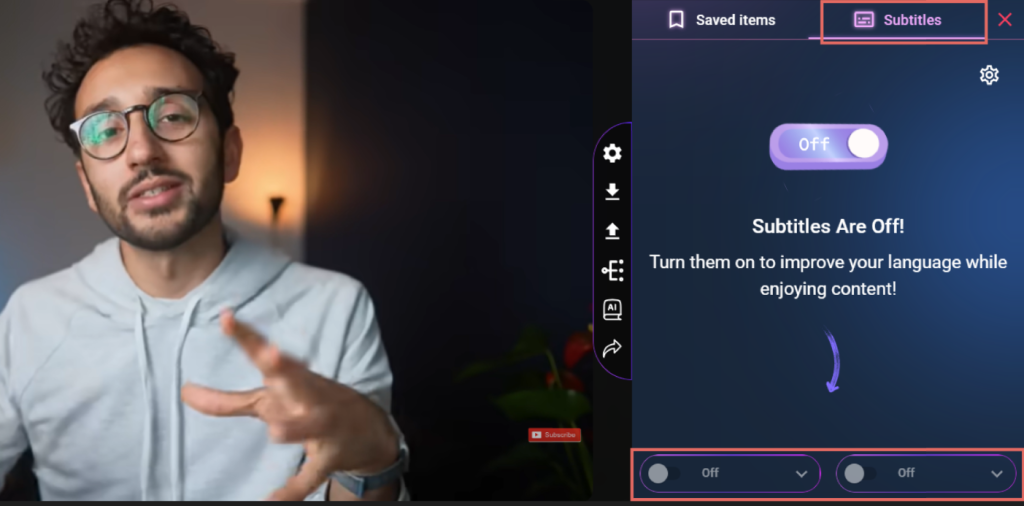
3.You can also access more detailed options in the Settings panel (click the settings icon in the features menu)
4.Once set:
-
- Subtitles will appear on the video and in the sidebar
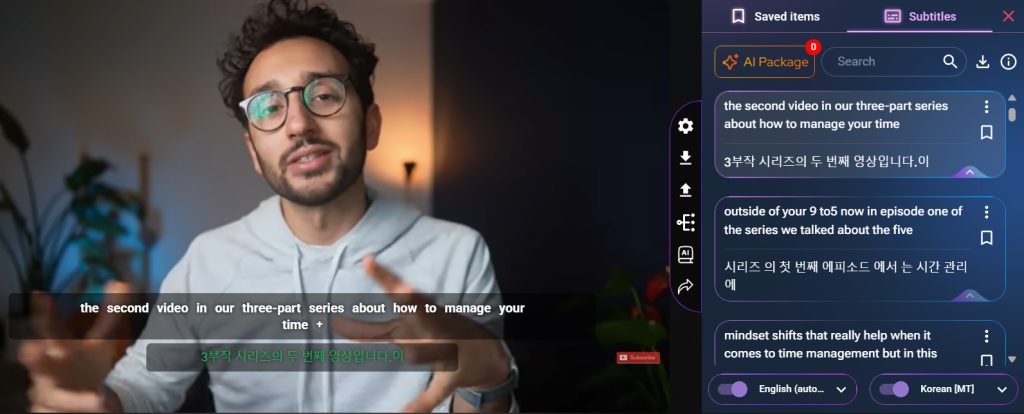
- Hover over words in the top subtitle to see instant word translations in a small popup

5.You can Use the toggles beside language selectors to turn each subtitle on or off based on your preference.