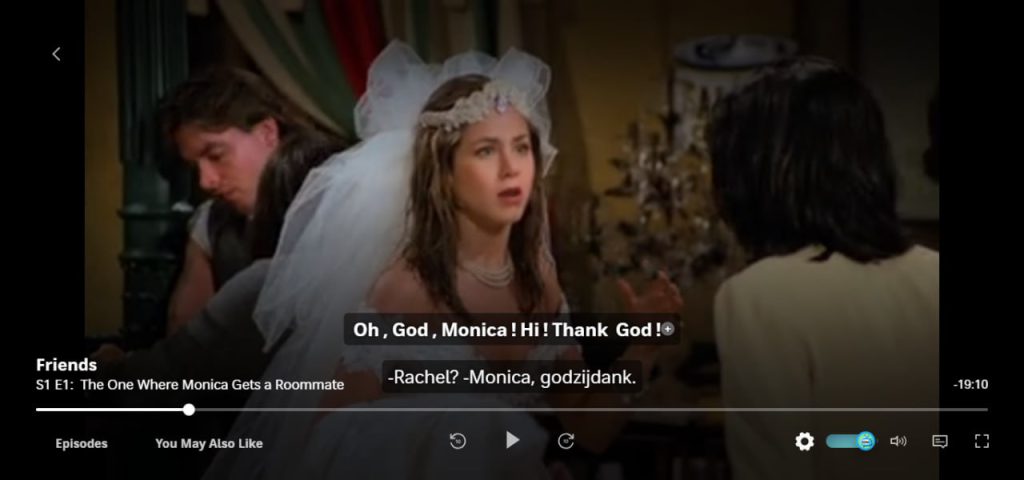
If you’ve ever tried learning a language while watching HBO Max, you probably thought: “Why can’t I have dual subtitles on HBO Max?” You’re not alone. Many viewers want to see both English and their native language at the same time. Sadly, the platform only gives you HBO Max subtitles one track at a time. But don’t worry—there are tricks to make dual subs HBO Max possible, and we’ll show you how.
Can You Customize Captions and Subtitles on HBO Max?
Yes, but only to a point. HBO Max lets you open closed captions settings and change the look of subtitles. You can adjust the font, background, size, and color. On the web and some devices, you’ll find this under Settings → Accessibility → Subtitles & Captions.
That’s great if you just want bigger or easier-to-read text. However, the platform doesn’t allow you to choose two subtitle tracks at once. So while you can customize captions HBO Max offers, you can’t truly unlock dual subs HBO Max natively.
How Do I Add More Subtitles to HBO Max?
Here’s the short answer: you can’t upload your own subtitle files. There’s no option to drag in an .srt or add extra languages manually. The only built-in choice is to pick from whatever subtitle languages HBO Max provides for that movie or show.
But here’s the good news. With a HBO Max dual subtitle extension, you can overlay another track on top of the default one. That means you can finally add subtitles HBO Max doesn’t natively support and watch with two languages side by side.
👉 Try it here: Language Learning with HBO Max Extension
What Are Dual Subtitles and Why Do They Matter?
Dual subtitles (dual subs) simply mean two sets of captions showing at the same time. For example: Spanish on the bottom and English right above it.
Why does this matter?
-
If you’re into HBO Max language learning, you can see the translation instantly.
-
Watching HBO Max foreign language movies becomes way easier—you don’t get lost.
-
Families or friends who speak different languages can enjoy the same show together.
In short, dual subtitles boost comprehension and make streaming more fun.
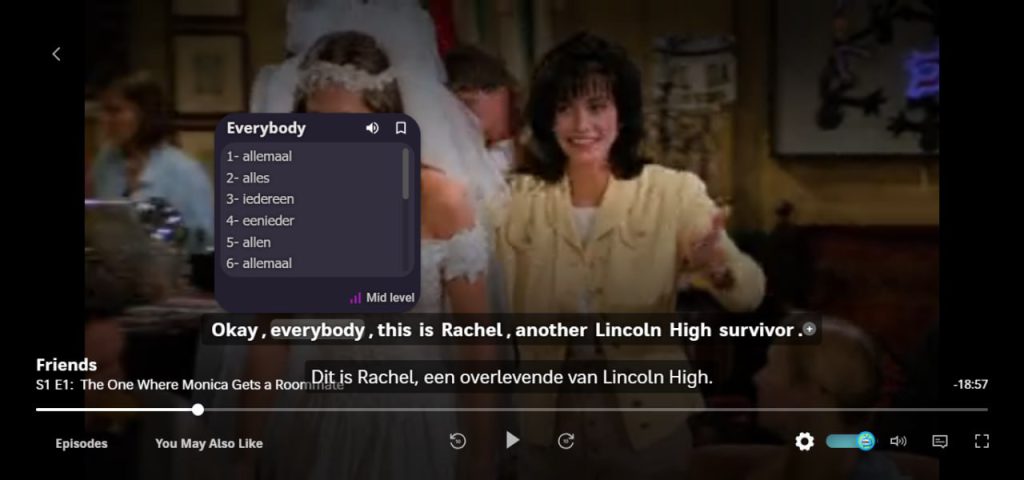
How to Watch HBO Max with Dual Subtitles
It’s easier than you think. Here’s how to do it with a browser extension:
-
Install the Language Learning with HBO Max extension.
-
Open HBO Max in Chrome or Edge.
-
Play your show or movie.
-
Pick your primary subtitle (English, Spanish, etc.) in HBO Max.
-
Then, choose the second subtitle through the extension.
-
Adjust the font or color if you want to customize captions HBO Max beyond defaults.
And that’s it—you can now watch HBO Max with dual subtitles in just a few clicks.
FAQs About HBO Max Subtitles
Can you add custom subtitles to HBO Max?
Not directly. But yes, with extensions.
How to watch HBO Max with two subtitles?
Use a dual-subtitle extension.
What’s the best way to learn languages with HBO Max?
Enable dual subs and actively compare lines.
Does HBO Max support dual subs out of the box?
No. It only supports one track at a time.
Final Thoughts
Here’s the takeaway: by default, HBO Max only gives you one subtitle. But with the right tool, you can unlock dual subtitles HBO Max doesn’t offer on its own. This makes it easier to learn, compare, and enjoy shows in multiple languages.
If you want the smoothest experience, try Language Learning with HBO Max Extension. It lets you add dual subs to HBO Max, Netflix, Disney+, and YouTube. It’s built for learners who want to improve grammar, vocabulary, and fluency—without feeling like they’re studying.