Learning while watching? Keyboard shortcuts make it faster and easier to interact with the video without clicking around.
Whether you want to repeat a sentence, save a subtitle, or jump to the next line, you can do it instantly — with just one key.
✅ Why it’s helpful:
- ⚡ Learn more efficiently with hands-on control
- 🔁 Quickly repeat subtitles or save key moments
- 🎯 Stay focused without reaching for the mouse
- 🛠️ Customize controls to match your style
👣 How to use Shortcuts:
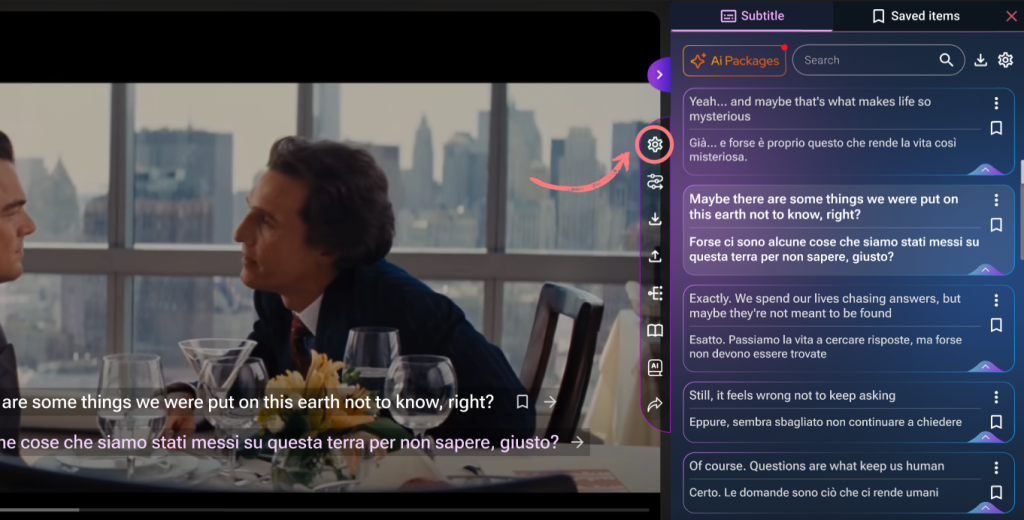
1.Click the Settings icon in the features menu beside the video
2.In the “Shortcuts” section, you’ll see a list of available hotkeys
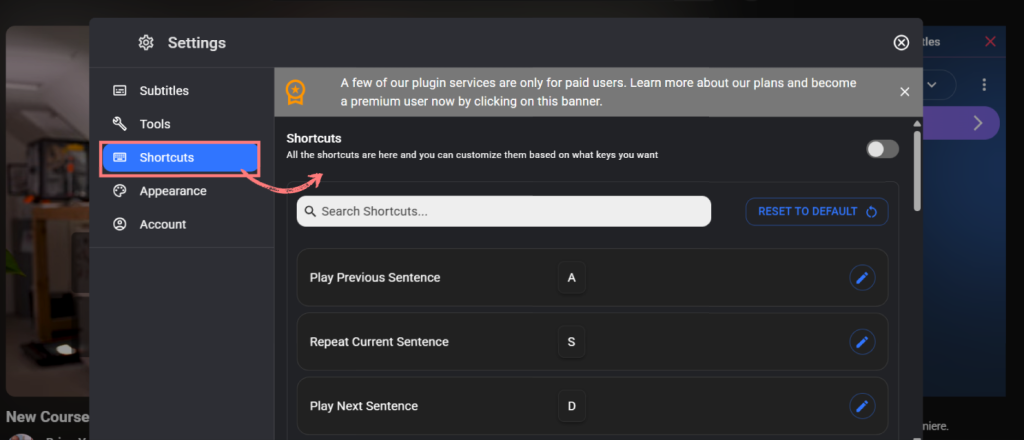
3.Some common actions you can do:
-
- 🔁 Repeat current sentence
- 💾 Save current subtitle (Premium)
- ⏭️ Play next / previous subtitle
- ⏸️ Pause / resume playback
- And more!
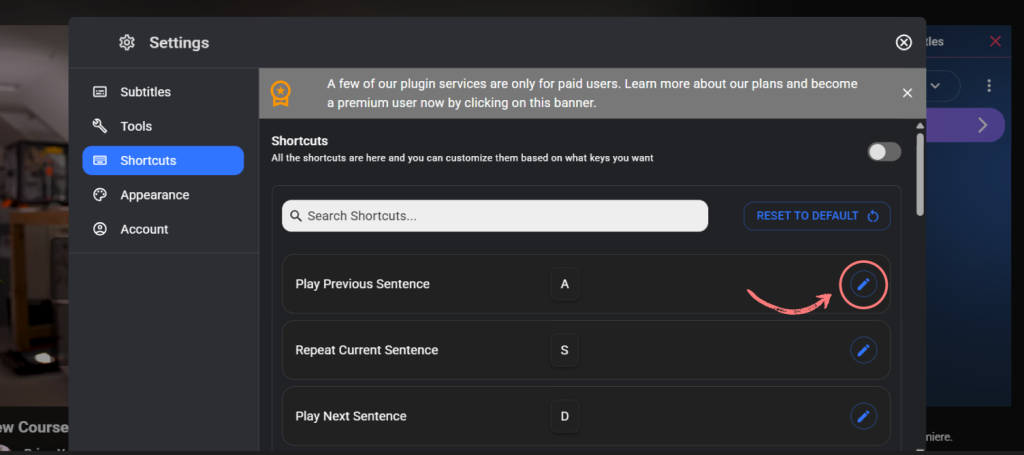
4.Want to customize them? Just click on edit icon for any shortcut to change the key
5.Free and premium shortcuts are marked — unlock more with a subscription!
Make learning smoother and faster —
Shortcuts put powerful tools right at your fingertips.