Language learning With Netflix shortcuts
Nowadays almost all language learners have found out the fact that the best way to learn a language is by watching Netflix. Because Netflix is the source of all the movies from around the world with different languages. But Netflix is not enough; You have to watch Netflix with the language learning Chrome extension. Because with this Chrome extension you can do language learning With Netflix shortcuts and lots of other features that it gives you.
This language learning with Netflix Google Chrome extension gives your Netflix account so many language learning options, that you’ll be learning a language automatically each time you watch Netflix. You’ll get options like:
- Dual subtitles on the screen
You can have two subtitles on the screen, one of them can be the mother language subtitle and the other one can be the target language subtitle.
- Hover dictionary
Hover the mouse over any words and it gives you the meaning and the pronunciation right away
- Save words and sentences
Save any word on sentence and you want to learn
- Export your saved words and sentences for offline review
Because nothing can be gained without review and practice.
- More than 10 more options
It got so many more options that can help you on your language learning journey. Just read this quick article to get more details about this Google Chrome extension’s options.
What is language learning with Netflix shortcuts?
Language learning with Netflix shortcuts is something that you can’t do without the Netflix Google Chrome extension.
These Netflix Chrome extension shortcuts are the buttons on the keyboard that when you press them, invoke commands on the Netflix video.
These keyboard shortcuts that make everything are:
- R: Press the “R” on the keyboard, to speed up playback.
- W: Press the “W” on the keyboard, to slow down playback.
- E: You can press the “E” on the keyboard, for normal playback.
- The “space key” is to play/pause the video.
- D: Press the “D” key on the keyboard, so the video goes forward.
- A: If you press the “A” on the keyboard, the video goes back.
- S: press the“S” on the keyboard to repeat the scene.
- H: press “H” for unlimited repeats.
- P: Press the “P” key on the keyboard to show/hide the upper subtitle.
- O: Press the “O” on the keyboard to show/hide the lower subtitle.
All the keyboard shortcuts are free for all the Netflix extension users. But if you get premium, you can use the “O” and the “P” keyboard shortcuts.
How to use shortcuts on the Netflix extension?
If you want to activate the language learning with Netflix shortcuts, first you have to click on the setting button.

With this toggle, you can enable/disable the shortcuts.
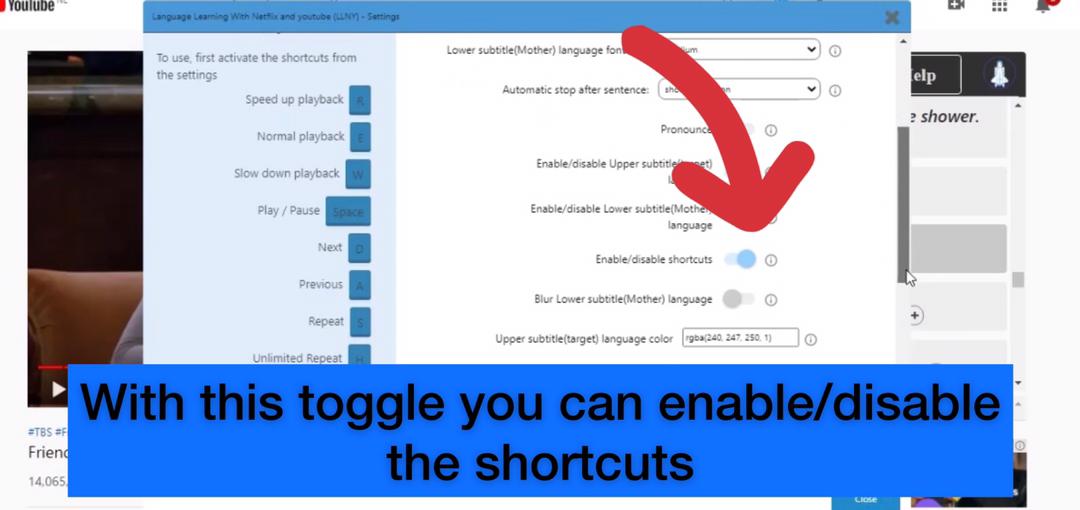
Now click on any keyboard shortcuts and have fun with them.
How can Netflix extension’s shortcuts help me learn a language?
There is a lot of fun ways to learn a language with the Netflix Google Chrome extension’s shortcuts. But here you can read some prepared ideas:
- If the pronunciation of any phrase, paragraph, or part of the dialogue was hard for you, you can use the “W” shortcut to slow down playback, so you can hear better. This is very good for your listening and speaking skills.
- When a word or a phrase is interesting to you and you want to learn it, you can press the “S” shortcut to repeat the scene or the “H” for the unlimited repeats. The repeating makes the word or the phrase stay in your mind better.
- Press the “O” to hide the mother language subtitle. After every sentence, read the original subtitle and try to guess its meaning. Then press the “O” key to show the mother language subtitle and see if you guessed right. This is very good for your translation skills and for your listening and speaking skills.
- Mute the video. Press the “P” key to hide the original subtitle. After every sentence, try to guess the original line by looking at the mother language subtitle. Then press the “P” to show the original subtitle and see if you guessed right. If you think about it, this is exactly what we do when we want to speak a foreign language. We think about the sentence that we want to say in our mother language, then we think about how to say it in the target language and then we say it. So this is a brilliant exercise for speaking skills.
language learning with Netflix Google Chrome extension’s other features
When you start to work with this language learning with Netflix Google chrome extension, you’ll learn to use all its features fast and easily. But in case you want a tutorial, check this 2 minutes tutorial video.
Also, make sure to check this website out to read short and easy tutorials, any time you wanted to.