How do you change the subtitles language on Netflix?
Do you want to know how to change the language of subtitles on Netflix Chrome extension? Do you watch Netflix with language learning with Netflix Chrome extension? I think you should. Because Netflix offers subtitles for the movies. But this language learning with Netflix Google Chrome extension gives you more than 40 subtitles for each movie. Also gives you some phonetics for East Asian languages, like Chinese, Japanese and Korean, that write their words with the English alphabet, so you can understand the right pronunciation of each word.
If you like, you can watch this tutorial instead of reading the whole article.
How to change the first subtitle
To change the first subtitle, click on the red wrench icon, next to it.

Also, you can change the first subtitle by this Icon on Netflix.
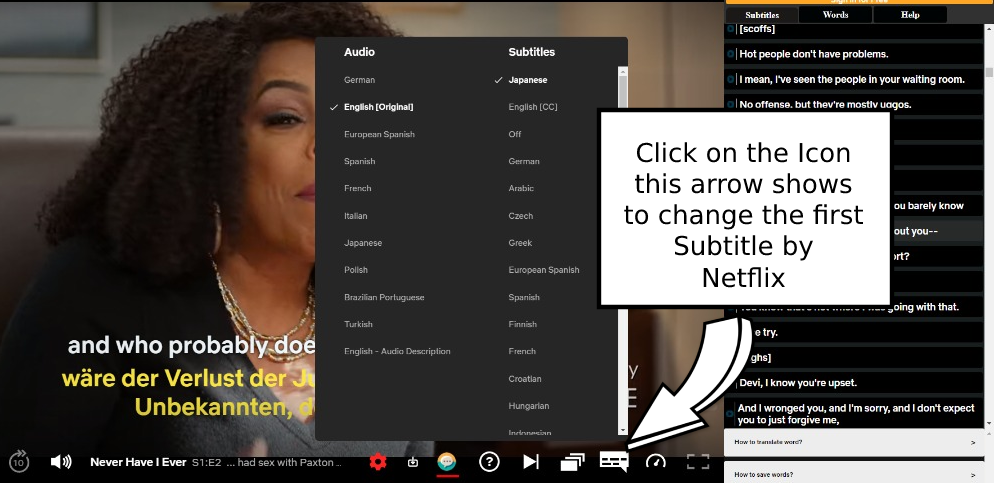
But remember; Netflix doesn’t have subtitles for some languages. Some languages are hidden when you want to choose a subtitle on Netflix. So it’s better to choose the language of the subtitle with the language learning with Netflix Google chrome extensions.
How to change the second subtitle
Click on the setting icon to see the options.
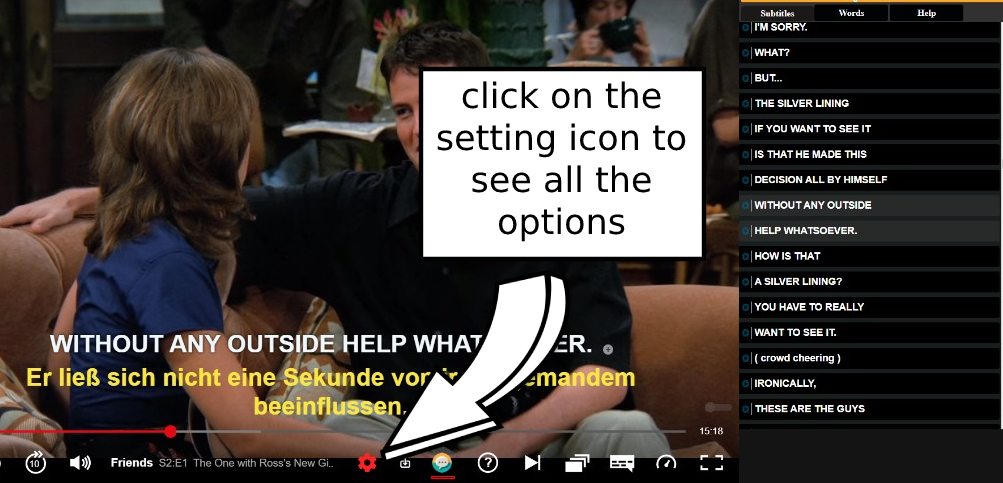
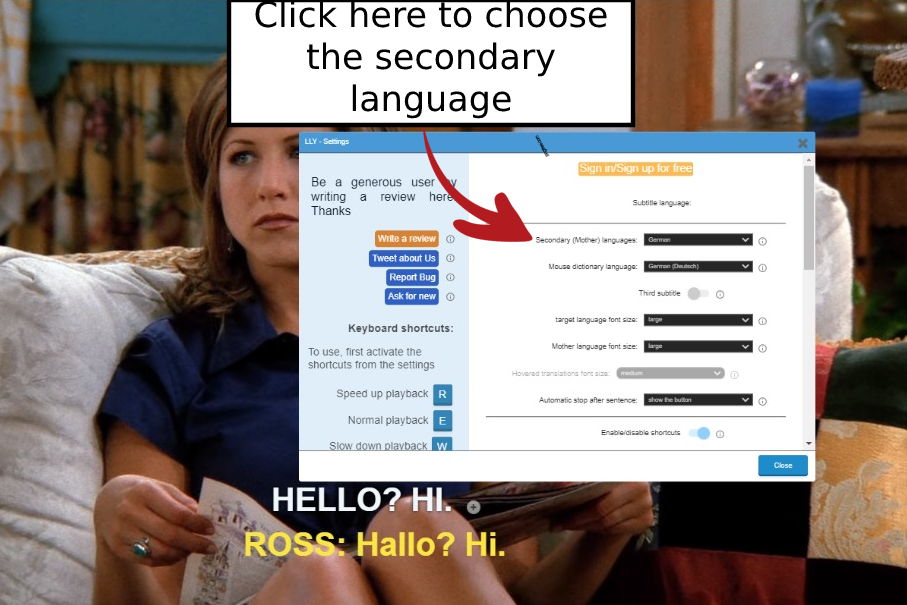
When you Clicked on the setting icon, this window opens. The white arrow shows you where to change the secondary language.
How to change the hover dictionary language
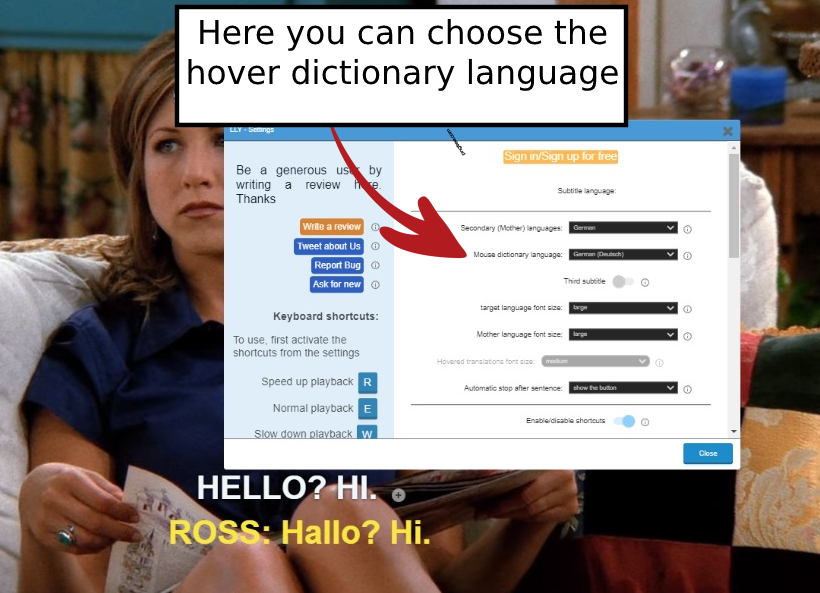
A few minutes ago you read about the hover dictionary. It is an instant dictionary that gives you the meaning of any word or sentence when you hover the mouse over it. So you don’t have to stop the movie and search in dictionaries and save a lot of time and energy.
The red arrow in this picture shows you how to choose the hover dictionary language.
How to upload subtitles for movies that don’t have subtitles, on language learning with Netflix Google Chrome extension.
Some films on Netflix don’t have subtitles, or they just have one or two subtitles. So you can’t find your specific language. Only this language learning with Netflix Google Chrome extension gives you the option to upload any subtitle for any movie that you want. So if Netflix doesn’t have your specific subtitle, you can download it from somewhere else, and upload it on your film.

How to use other features on Netflix Google Chrome extension
Enjoy watching movies with this language learning with Netflix Google Chrome extension, and master its cool features yourself. The good thing about this extension is that it is so easy for you to work with.
Also, it will get a lot of other cool features on coming updates. So stay tuned to come back to us if you had any questions or wanted a little extra knowledge.
Tell us about your experience working with this Google Chrome extension in the comments.
Why Language learning with Netflix?
Congratulations; you are one of the people who have understood that language learning with Netflix is the best way to learn a language. Although it has become so popular, not a lot of people know that.
Language learning with Netflix has become even more efficient since Google Chrome extensions came and rescued us all. I’m sure you already have the language learning with Netflix and YouTube Google Chrome extension. If not, click here to get it.
How to learn a language with Netflix Google Chrome extension
Language learning with Netflix Google Chrome extension gives you so many extra options on your Netflix that help you on your language learning journey. It gives your Netflix account, a language learning theme. The options that this language learning with Netflix Google Chrome extension gives you are:
- Dual Subtitles
You can have two subtitles on the screen. One of them is your mother tongue language, and the other one is your target language. So you can understand what the characters are saying, take a look at the target language Subtitle to see the pronunciations, and improve your speaking and listening skills.
- Instant dictionary
Do you know what is the bummer when you’re watching a film without language learning with Netflix Google Chrome extension? Wondering about a word meaning and having to stop the video to go to a dictionary and find the word and its meaning.
With language learning with Netflix Google Chrome extension, all you have to do is hover the mouse over any word, and it gives you the meaning right away.
- Save the words and the sentences
Have you ever heard a word or a sentence on a video that you wanted to memorize? So you had to stop the video and go grab your notebook, and write it down. In some cases you said “Nah never mind, I’ll just memorize it”, but then forgot it.
Solve this problem with language learning with the Netflix Google Chrome extension. You can simply hover the mouse over any word or sentence that you want, click on the plus sign, and save that word or sentence. Like the picture below. The crazy part is, you can download them for offline review with different formats. So you can repeat and practice them later, to be sure that you’ve learned everything.
These options that we mentioned, were the most popular ones. You can read this article about its other benefits.
Watch the two minutes tutorial video about how to use language learning with Netflix Google Chrome extension.
Other learning Tutorials
This Netflix Chrome extension doesn’t need any tutorials, because it is so easy to work with. Just watch the 2 minutes tutorial on this link and you’ll be fine.
But just in case:
Check out other tutorials on this website that teach you How to use the Netflix Chrome extension’s beneficial features.
Also, check this website to get amazing tips about learning languages.